Best Emergency Preparedness Apps for Families in 2026
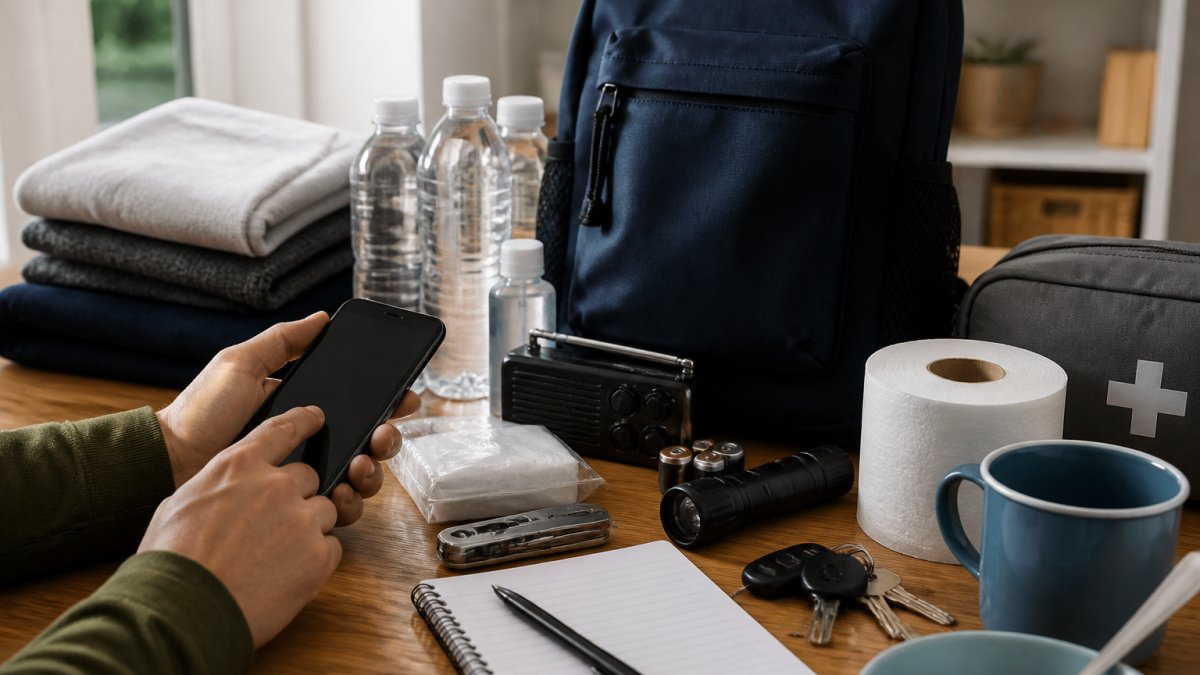
Table of Contents
- Why Your Family Needs Emergency Preparedness Apps
- What to Look For in Emergency Preparedness Apps for Families
- Family Emergency Alert Apps: How to Receive and Share Targeted Alerts
- Offline Emergency Preparedness Apps: When the Network Goes Down
- Building Your Family Emergency Plan Template Around the App
- The Emergency Kit Checklist for Families That Pairs With Your Apps
- Privacy, Permissions, and Age-Appropriate Setup for Every Household Member
- Testing and Maintaining Your Family's App Readiness
- Frequently Asked Questions
Last Updated: October 18, 2026
Why Your Family Needs Emergency Preparedness Apps
Most households treat emergency planning as a binder filled out once and never opened again, useless in a 2 a.m. power outage. Emergency preparedness apps for families solve what paper cannot: alerts, contacts, meeting points, and offline checklists on the device already in everyone's pocket.
Below, we break down what works, what to skip, and how to build a plan your household will follow, including the gaps most roundups ignore: offline performance, privacy, and age-appropriate setup.
What to Look For in Emergency Preparedness Apps for Families
The right app is the one that still works when the network does not. That single test eliminates most of the market.
Selection Criteria: Alerts, Offline Access, and Privacy
Judge any app against five criteria before you install it:
- Targeted alerts: Does it deliver location-based warning notifications, or only general news?
- Offline access: Can family members open the plan, contacts, and checklists with no signal?
- Location sharing: Is GPS sharing opt-in, time-limited, and transparent?
Most families install an app, grant every permission, and never revisit it. Our rule: if you cannot explain to your teenager why the app needs location access, do not grant it.
Family Emergency Alert Apps: How to Receive and Share Targeted Alerts
A family emergency alert app is a tool that pushes location-specific warnings to every household member and lets them confirm status back to the group. The value is not the warning itself; it is the confirmation loop.
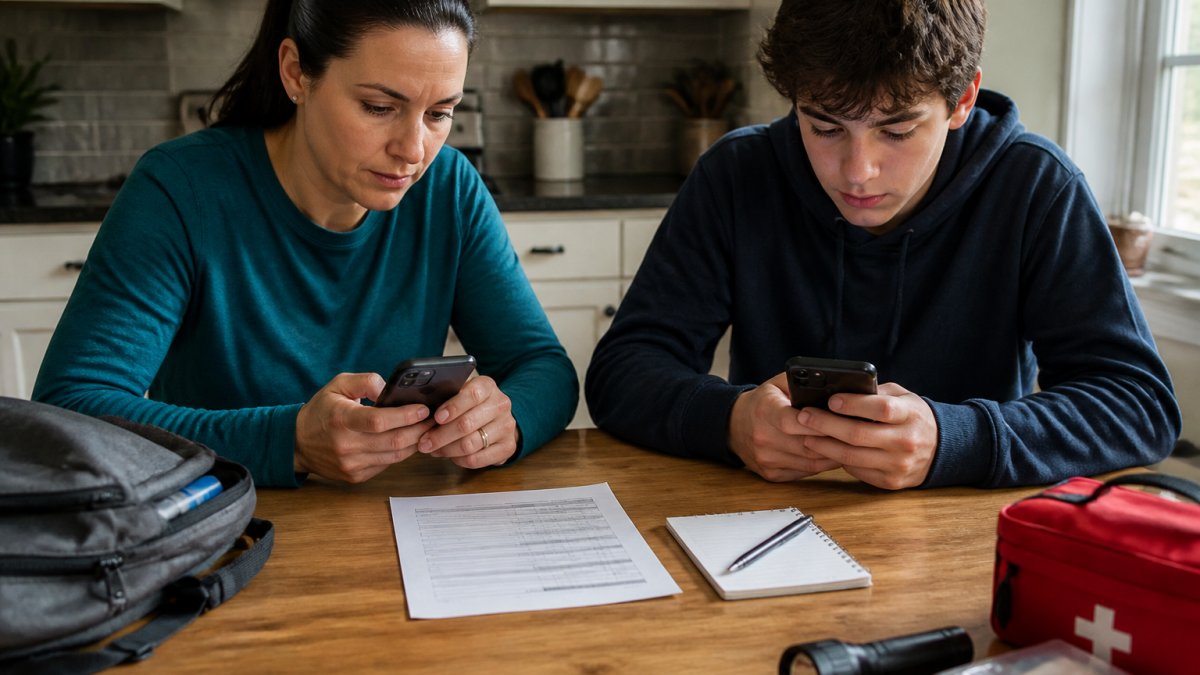
Here is how we would set alerts up in any household:
- Enable government-issued wireless emergency alerts on every phone, then add one app that covers your local hazards.
- Turn on location-based notifications, but restrict sharing to a set window during an emergency.
- Agree on a check-in protocol: one text, one tap, one reply.
- Designate one out-of-area contact as the relay, since local towers often fail first.
The Federal Emergency Management Agency's alert and warning guidance is a sensible starting reference for what official alerts cover. For general household planning, the Ready.gov family communication plan guidance walks through contact cards and meeting points step by step.
Offline Emergency Preparedness Apps: When the Network Goes Down
Offline emergency preparedness apps store your plan, contacts, and checklists locally so they open without cellular service or Wi-Fi.
Cellular networks congest quickly in a disaster, so a tool that needs a live connection to show your meeting point fails exactly when you need it.
Keep a laminated paper backup of the same information with your kit. Apps and paper should mirror each other, not compete.
Building Your Family Emergency Plan Template Around the App
A family emergency plan template should capture five things: who is in the household, where you meet, how you communicate, who has which medical needs, and what each person does first. Build it inside the app so it stays with everyone, around scenarios, not just fields, because a wildfire evacuation plan is not a house-fire-at-2-a.m. plan.
The Five Core Fields Every Member Needs
Fill in these fields for every member, and keep them identical across the app and the paper backup:
- Full name, date of birth, and mobile number
- Medical history, medications, allergies, and diagnoses
- Two emergency contacts and one ICE contact
Scenario-Specific Plan Variants
Most guides give you one plan. Families need at least three, because the correct action changes with the hazard:
- Sudden evacuation (house fire, wildfire, gas leak): Everyone exits immediately to the close meeting point, the mailbox, the neighbor's driveway, the corner tree. No one re-enters. The app's role is a headcount check-in, not a lookup.
- Shelter-in-place (severe weather, chemical release, active threat): Everyone moves to the designated interior room, and the app's role shifts to monitoring official alerts and confirming who is inside.
- Reunification after separation (school closure, commute disruption, regional disaster): Everyone moves to the out-of-neighborhood meeting point, and the app's role is location sharing and the out-of-area relay contact.
Write all three into the template as separate tabs or notes. A plan covering only evacuation leaves families improvising in the most common scenario, being separated when the event starts.
The Reunification Protocol
Reunification is the part competitors mention but rarely detail. What works:
- Pick two meeting points. One within walking distance of home (under 10 minutes on foot) and one outside the immediate neighborhood but inside the same town or city.
- Assign a rally order. If the close point is unsafe, everyone goes to the far point, no one waits at the close point hoping others arrive.
- Designate one out-of-area contact. This person lives outside your region and serves as the relay when local towers fail. Every family member memorizes that number, not just stores it.
- Set a check-in window. Agree that everyone checks in within 30 minutes of a known event, and again at the top of each hour until reunited.
- Walk the routes. Walk both meeting points with your children so the route is muscle memory, not an abstract line on a screen.
What to Write Into the App vs. What to Keep on Paper
Apps handle updates and alerts well; paper handles outages and dead batteries. Split the template accordingly:
- App-only fields: live location sharing, alert subscriptions, check-in status, rotating supply inventory dates.
- Paper-only fields: the out-of-area contact number, the two meeting point addresses, and each child's memorized contact. Laminate a card-sized copy for every backpack and wallet.
- Both: medical details, ICE contacts, and the scenario variants.
The Emergency Kit Checklist for Families That Pairs With Your Apps
An emergency kit checklist for families should mirror the app: water, food, medications, documents, and contact information. If the app lists it, the kit should hold it.
| Kit Category | What to Pack | App Field to Match |
|---|---|---|
| Water and food | Stored water, shelf-stable food, manual can opener | Supply inventory and rotation dates |
| Medical | Prescriptions, first aid supplies, allergy notes | Medical history and medications |
| Documents | ID copies, insurance details, contact list | Emergency contacts and ICE |
| Power | Batteries, charged power bank, flashlight | Device battery reminders |
| Pets | Food, leash, carrier, vaccination record | Pet preparedness notes |
Space-efficient storage matters in apartments. FlintReady's field guides cover budget-conscious storage without the gear sprawl.
Privacy, Permissions, and Age-Appropriate Setup for Every Household Member
Location data is the most sensitive thing a family safety app handles. Grant the minimum permission that keeps the tool useful, and review it regularly, privacy and age-appropriate setup are where most guides stop at a paragraph and where families get into trouble.
Matching the App to the Family Member
No single app fits every household member. Match the tool to the person:
- Young children (under 10): Do not give them their own account. Set up the app on a parent's device, teach the child the meeting point and one contact number by memory, and write that number on a card in their backpack. The child's job is recall, not app operation.
- Teenagers: Give them their own account, but limit location sharing to emergency windows rather than always-on. Teach them to check permissions after every app update, because updates can silently expand access.
- Older relatives: Enlarge text, pin the app to the home screen, and test the check-in flow together. Pair the app with a printed large-print contact card, since accessibility needs often make app navigation harder under stress.
Child Privacy: What to Configure Before You Hand Over the Phone
Children's location data deserves stricter defaults than adults'. Before setting up any app on a child's device:
- Turn off ad tracking and personalized advertising in the device settings.
- Disable background location for every app that does not need it for the family plan.
- Set location sharing to time-limited windows, not always-on.
Family safety apps commonly request contacts, location, and notification access at install. Grant notifications and location during emergencies; deny contacts access unless the app's core function requires it.
Permissions Drift: The Quarterly Audit
What most guides miss is permissions drift: an app update can quietly expand access, and a family that set things up two years ago may be sharing more than intended. Run a quarterly audit:
- Open the phone's privacy settings and list every app with location access.
- Revoke location from any app you cannot justify to your teenager.
- Check background location separately from foreground, background is the riskier permission.
- Confirm the family app's location sharing is still set to emergency windows, not always-on.
- Review account security: unique passwords, two-factor authentication where available, and no shared logins between family members.
Scenario-Based App Selection
Rather than one app for every family, choose by the hazard you are most likely to face:
- Severe weather (tornado, hurricane, flood): Prioritize apps with official alert integration, shelter-in-place checklists, and offline plan access. The alert feed matters more than location sharing.
- Wildfire evacuation: Prioritize apps with evacuation zone maps, route planning, and fast family check-in. Location sharing during evacuation windows is worth the privacy trade-off.
- Medical emergencies: Prioritize apps that store medical details, medications, and allergies in an offline-accessible format, and that let a caregiver access them quickly.
Most families need two apps at most: one for official alerts and one for family check-in and plan storage. More than that and the household stops maintaining any of them.
Testing and Maintaining Your Family's App Readiness
Readiness is a maintenance habit, not a one-time install. Schedule a quarterly drill like a fire drill: everyone participates, and you note what broke.
Run this readiness check:
- Open the app in airplane mode and confirm the plan loads
- Send a test check-in from every device
- Verify contacts and medical details are current
A three-minute readiness scan is the fastest way to find gaps before they matter. FlintReady's diagnostic turns those gaps into a prioritized fix list, so you fix the biggest risk first instead of buying gear at random.
Frequently Asked Questions
Can emergency preparedness apps work without internet access?
Some can, but only if you set them up in advance. Offline emergency preparedness apps typically cache your family plan, meeting points, emergency contacts, and supply lists on the device so they remain readable with no signal. Live alerts and location sharing still need a connection, so treat offline mode as a reference tool, not a communication channel. Before you rely on any app, open it in airplane mode and confirm your plan and contacts are actually stored locally.
Which apps can send emergency alerts to family members?
Family emergency alert apps generally fall into two groups: those that push official warnings from agencies to every household device, and those that let one member trigger a check-in or status message to the rest of the group. Look for an app that does both, supports SMS fallback when data is unavailable, and lets you set a designated out-of-area contact. Test the alert flow with your family before you need it, since permissions and notification settings often block alerts silently.
What should be in a family disaster kit?
An emergency kit checklist for families should cover water at roughly four litres per person per day for at least three days, shelf-stable food, a manual can opener, a battery or hand-crank radio, flashlights, spare batteries, a first aid kit, prescription medications, copies of ID and insurance documents, cash in small bills, phone chargers and a power bank, and supplies for pets, children, and older relatives. Store it in a sealed bin you can carry, and review it twice a year.
How can families prepare their phones for an emergency?
Start with the basics: keep phones charged, add a power bank to your kit, save ICE contacts in each device, and enable official emergency alerts in your phone's settings. Then install one family-focused app, complete your household profile, and set a shared meeting point. Turn on location sharing only for the people who need it, review app permissions so nothing is draining battery in the background, and run a short drill where everyone sends a check-in message.
Your family's plan is only as strong as its weakest link, and that link is usually an untested app and an outdated kit. FlintReady gives you a calm, structured way to close both gaps: a personalized readiness diagnostic that ranks your fixes, expert-vetted field guides for power outages and storms, and live threat monitoring that keeps you informed without the panic. Take the 3-minute scan and turn your household's good intentions into an operational plan.