How to Store Emergency Documents Securely Online
Last Updated: November 10, 2026
Quick Summary
To store emergency documents securely online, scan your critical papers and upload them to an encrypted cloud folder or zero-knowledge vault, then protect the account with a long passphrase and multi-factor authentication. Keep paper originals and an offline drive as backups, and test your recovery path once a year.
- Scan identity, financial, insurance, medical, and legal papers first, naming each file clearly.
- Zero-knowledge vaults keep the provider from ever holding your decryption key.
- Prefer an authenticator app or hardware key over SMS codes for MFA.
- Keep an offline external drive copy disconnected except during updates.
- Print backup codes and store them offline, never only inside the account.
Table of Contents
- Why Digital Copies Beat a Filing Cabinet Alone
- Your Important Documents Checklist PDF: What to Scan First
- Where to Store Sensitive Documents Online: Vaults, Cloud Drives, and Encrypted Folders
- How to Keep Important Documents Safe Online: Encryption, Passwords, and Access Controls
- How to Keep Important Documents Safe at Home: Fireproof Storage and Backup Drives
- Recovery Planning When Your Phone, Account, or Home Is Unavailable
- Build Your Document Vault in One Afternoon
- Frequently Asked Questions
Why Digital Copies Beat a Filing Cabinet Alone
A filing cabinet protects paper from nothing but clutter. Fire, flooding, and theft destroy paper records, and a locked drawer does not survive a house fire.
The core idea is simple. Paper is your first copy. The cloud is your backup copy. You need both, and most people only have the first.
- Paper copies survive power outages and account lockouts.
- Digital copies survive fire, flooding, and theft.
- Two copies in two places is the minimum for anything you cannot replace.
A common mistake is trusting one method completely. A fireproof box fails if the fire is long enough. A cloud account fails if you lose the password.
Your Important Documents Checklist PDF: What to Scan First
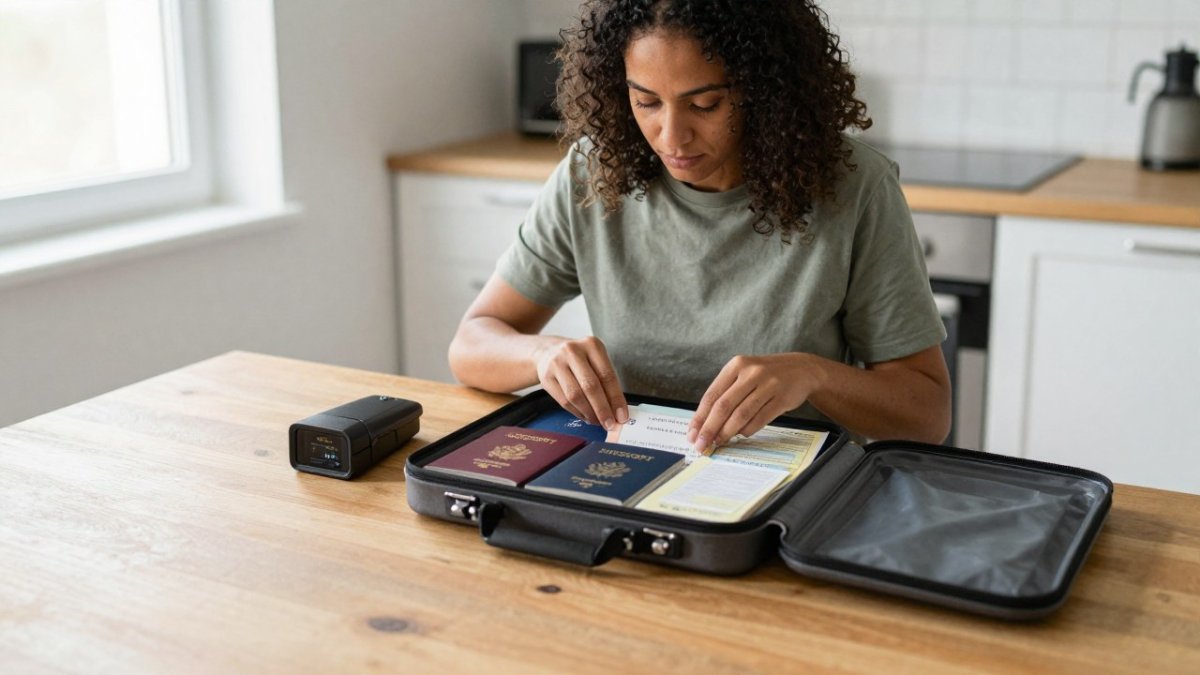
Start with the documents that are hardest to replace. An important documents checklist PDF gives you a printable list to work through, so you scan in priority order instead of guessing.
Here is the order we recommend:
- Identity documents: passports, birth certificates, Social Security cards, driver's licenses.
- Financial records: bank statements, tax returns, mortgage and loan papers.
- Insurance policies: home, auto, life, and health policy numbers and contact lines.
- Medical records: prescriptions, immunization records, and specialist contact details.
- Legal papers: wills, powers of attorney, deeds, and vehicle titles.
- Account access notes: a list of which accounts exist, never the passwords themselves.
Scan the front and back of every card. Name each file clearly, like passport-jane-doe.pdf. Vague names like scan001.pdf become useless fast.
A 72-hour emergency prep checklist pairs well with this step, since it includes a documents section you can tick off as you go.
Watch out: do not store a password list in the same folder as the documents it unlocks. If that folder leaks, everything leaks together.
Where to Store Sensitive Documents Online: Vaults, Cloud Drives, and Encrypted Folders
Three storage types cover almost every household need, and they differ mainly in who holds the keys.
| Storage Type | Who Can Read Your Files | Best For | Main Trade-off |
|---|---|---|---|
| Standard cloud drive | The provider can access files | Everyday backups, photos | Weaker privacy by default |
| Encrypted cloud folder | Only you, if you hold the key | Sensitive scans | Key loss means data loss |
| Zero-knowledge vault | Only you, provider cannot decrypt | Passports, wills, medical records | Harder account recovery |
Standard cloud storage is the easiest to use. You upload files and the provider handles the rest.
Encrypted folders add a lock before upload. You encrypt the file on your own device, then upload the locked version. The provider stores scrambled data it cannot read.
Zero-knowledge vaults take that idea further. The provider never holds your decryption key, so even a court order or breach exposes nothing readable. The price is recovery: if you lose the key, nobody can restore your files.
If you are still choosing a family tool, it helps to compare how the main options handle documents and access before you commit. A side-by-side look at family emergency planning apps and a direct app comparison for family planning both cover document storage and sharing permissions.
How to Keep Important Documents Safe Online: Encryption, Passwords, and Access Controls
Security for an online document vault is not one setting you turn on. It is a set of safeguards matched to the specific ways documents get exposed.
Start by naming the realistic risks:
- Account takeover: someone guesses or phishes your vault password and logs in as you.
- Provider access or breach: the storage company can read your files, or its systems are compromised.
- Device loss or theft: a phone or laptop with synced files is lost or stolen.
- Ransomware or malware: malicious software on your device encrypts or exfiltrates local copies.
- Insider or family exposure: someone you shared access with can see more than intended.
Now match each risk to a safeguard:
| Risk | Safeguard |
|---|---|
| Account takeover | Long unique passphrase plus multi-factor authentication (MFA), preferably an authenticator app or hardware key rather than SMS |
| Provider access or breach | Client-side encryption or a zero-knowledge vault so the provider stores only scrambled data |
| Device loss or theft | Device passcode, remote wipe, and avoiding automatic sync of the most sensitive folder to every device |
| Ransomware or malware | Keep an offline copy on an external drive that is disconnected except during updates |
| Insider or family exposure | View-only sharing, expiry dates on links, and separate folders per trusted person |
Encryption, plainly. End-to-end encryption means the file is locked on your device before it uploads and unlocked only on your device after download.
Passwords and MFA. Use a long passphrase for the vault account, not a reused password, and store it in a password manager.
Access controls and secure sharing. The goal is to give trusted people the access they need without handing over your main password or exposing every file. Most vaults and cloud drives support:
-
Trusted contacts: named people who can request access if you are incapacitated, often after a waiting period.
-
View-only or comment-only permissions: recipients can read a file but not edit or delete it.
-
Folder-level sharing: share only the folder that person needs, not the whole vault.
-
Expiring links: set a date after which a shared link stops working.
-
Separate shares per person: create one folder per trusted contact so revoking one does not disturb the others.
-
Use a password manager to hold vault credentials.
-
Store your recovery key somewhere separate from your devices.
-
Review who has access every few months and remove anyone who no longer needs it.
-
Print recovery codes or store them offline, never only inside the account they unlock.
Watch out: recovery codes saved only inside the account they unlock are worthless if you are locked out; print them or store them offline in a separate location.
How to Keep Important Documents Safe at Home: Fireproof Storage and Backup Drives
Physical backups still matter, because a digital vault assumes you can reach the internet and log in. Keep a fireproof safe for the paper originals and an external drive for a full digital copy.
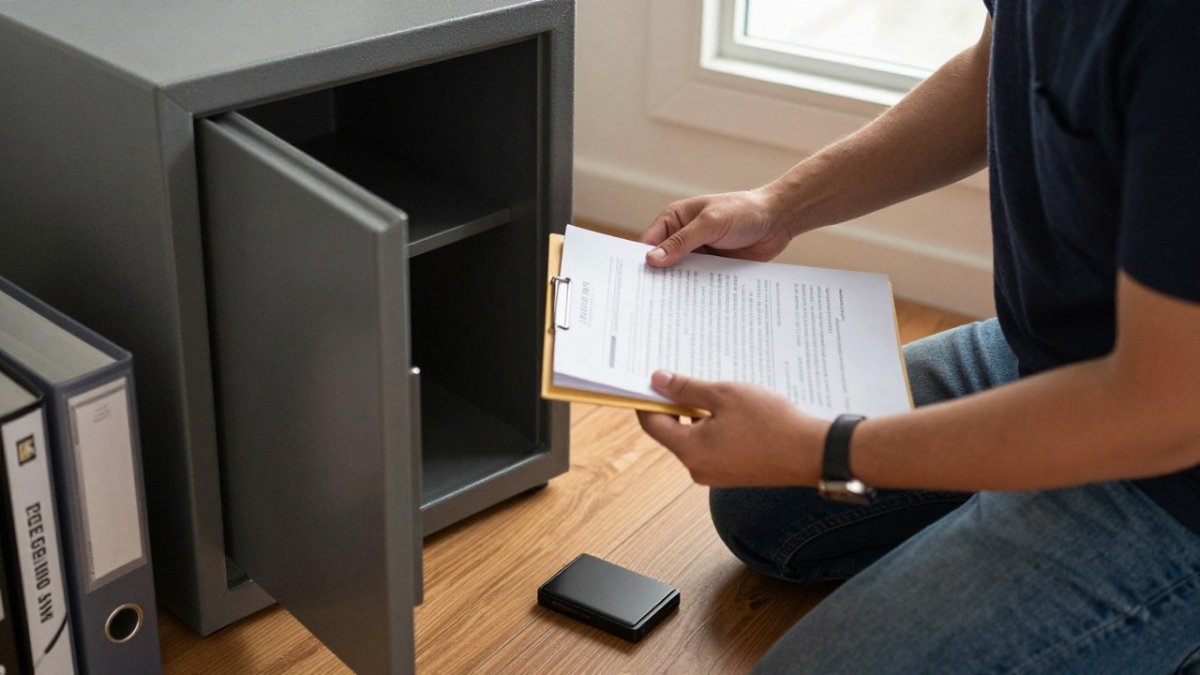
A few practical rules for the home side:
- Fireproof and waterproof matter together. A fire safe that floods in the basement is a wet box.
- Refresh the drive. Plug in the external drive every few months and copy new scans over.
- Keep the drive and the safe apart. Storing both in the same closet defeats the point.
- Label everything. A binder with printed tabs beats a shoebox of loose paper.
For a deeper walkthrough of safe selection and contents checklists, our waterproof and fireproof document safe guide covers the buying decisions in detail.
Recovery Planning When Your Phone, Account, or Home Is Unavailable
The scenario most people miss is losing access to their own account. A lost phone, a forgotten password, or a wiped device can lock you out of the very vault that holds your recovery information.
Build the plan around four artifacts and one rehearsal:
- A recovery sheet. Write down your vault provider, the account email, the recovery key location, and the phone number or email for the provider's account-recovery team. Do not write the password itself on this sheet. Store one copy offline in the fireproof safe and give one sealed copy to a trusted person who lives elsewhere.
- Backup codes printed and stored offline. When you enable MFA, the provider issues one-time backup codes. Print them, put them in the safe and with your trusted person, and never store them only inside the account they unlock.
- An alternate device that can reach the vault. Keep an old phone or tablet charged and signed in to the vault, or at least keep the vault app installed and the credentials in your password manager so you can sign in from a borrowed device. Test that you can log in from a device that is not your daily phone.
- A trusted recovery contact configured in the vault. Most zero-knowledge vaults and many cloud drives let you name a contact who can request access after a waiting period, often 24 to 72 hours, if you are incapacitated. Set this up before you need it and tell the person what to expect.
- An annual rehearsal. Once a year, walk through the recovery path: find the recovery sheet, use a backup code to sign in on a secondary device, and confirm the trusted contact can see the shared folder. A plan you have never tested is a guess.
A common pattern is to discover during a real emergency that the recovery email is an old address you can no longer access, or that the backup codes were saved in the vault itself.
If your home is unavailable, the same plan applies but the offline copies matter more. If your accounts become unavailable, you may also need cash on hand; guidance on emergency cash storage at home covers how much to keep and how to protect it from fire and flood.
Build Your Document Vault in One Afternoon
Total time: about three hours. Difficulty: beginner.
What you'll need:
- A scanner or phone camera
- A password manager
- A cloud account or encrypted vault
- An external drive
- A fireproof, waterproof safe
Step 3: Encrypt and upload [30 minutes]. Lock the folder, then upload it to your chosen vault.
Step 4: Copy to the external drive [15 minutes]. Keep this copy offline and separate from the safe.
Step 6: File the paper originals [15 minutes]. Put originals in the safe, labeled and dry.
Expected result: two copies of every critical document, in two places, with a tested recovery path.
FlintReady was built for exactly this kind of operational planning.
Most households have paper documents and no backup plan, which means one fire or one lost phone erases years of records.
Frequently Asked Questions
Which emergency documents should I store online?
Start with the documents you would need to prove identity or file a claim: passports, birth and marriage certificates, Social Security cards, wills, insurance policies, deeds, and recent medical records. Add a household inventory with photos of high-value items for insurance claims. Scan the signed pages, not just the covers. Keep the originals in a fireproof safe at home and store encrypted digital copies online so you have a working set even if the physical file is destroyed or unreachable.
Is Google Drive or Dropbox safe for storing sensitive documents?
Both are reputable providers with strong infrastructure, but standard consumer accounts are not zero-knowledge by default, meaning the provider holds the encryption keys. For passports, wills, and medical records, add your own layer: encrypt files with a password-protected archive before uploading, or use a vault with end-to-end encryption. Turn on multi-factor authentication and set up account recovery options. The storage is only as safe as your password hygiene and your recovery plan.
How can my family access emergency documents if I lose my phone?
Set up access before you need it. Store your vault credentials in a password manager with an emergency access feature, and name one or two trusted contacts who can request access after a waiting period you set. Keep a printed recovery kit, including your master password and backup codes, in a fireproof safe or with a lawyer. Test the process once a year so you know the recovery path works when the primary device is gone.
Should I keep copies of emergency documents offline as well as online?
Yes. A mixed approach covers the failure modes each method misses. Online copies survive fire, flooding, and theft at home, while offline copies survive account lockouts, provider outages, and data breaches. Keep originals and a printed recovery kit in a fireproof, waterproof container, plus one encrypted external drive stored off-site, such as at a relative's house or a safety deposit box. Update all three copies on the same schedule so they stay in sync.
